
truelovewaits♀︎
Joined:
Last Activity:
449 member views + 492 guest views
1 followers & following 1
infocomics(0)chapters(0)reviews(0)comments(229)BatoLists(0)fans(1)follows璉statusscoresemotionstags
— ˙𖦹 pfp : acting gangster 𖦹˙—
 prev the vow but deleted
kindly check my tutorial below

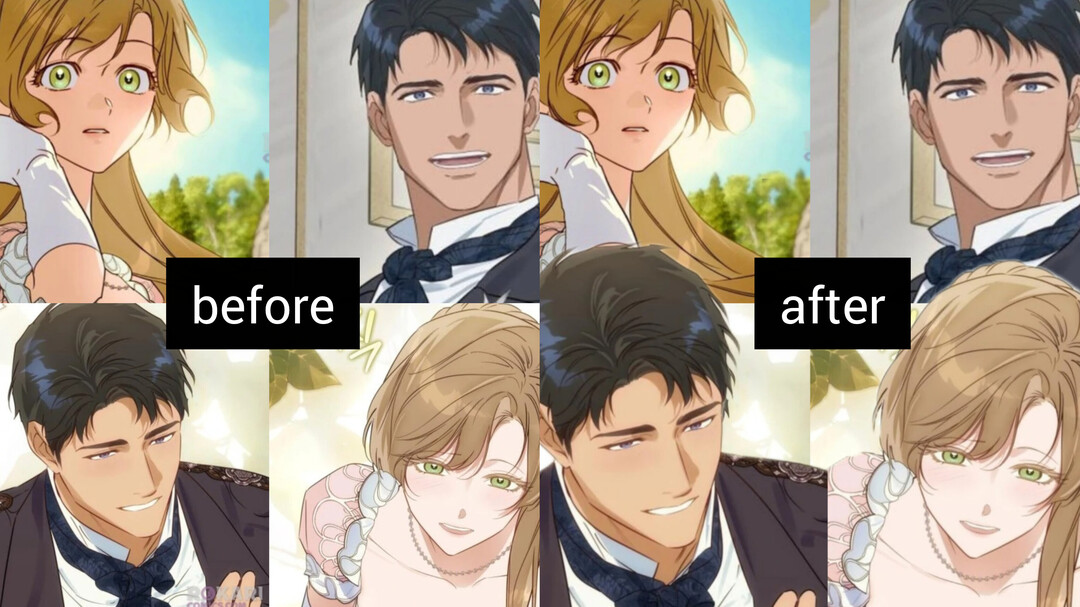

for other users, please check the Reddit link
source : reddit | reddit pdf
━━━━⊱⋆⊰━━━━
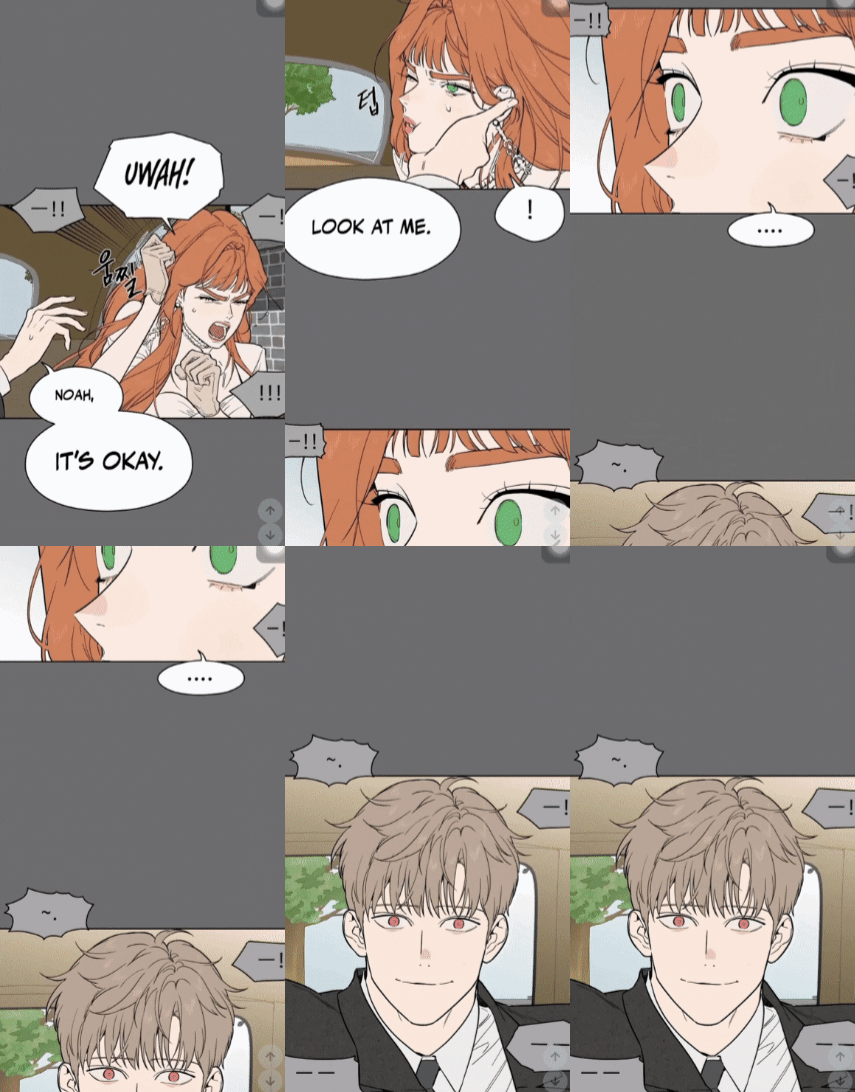
if you curious about something you want to ask

prev the vow but deleted
my lists
currently reading | my translation | recs 💖
these links are under construction
these links are under construction
kindly check my tutorial below
✖️ remove background
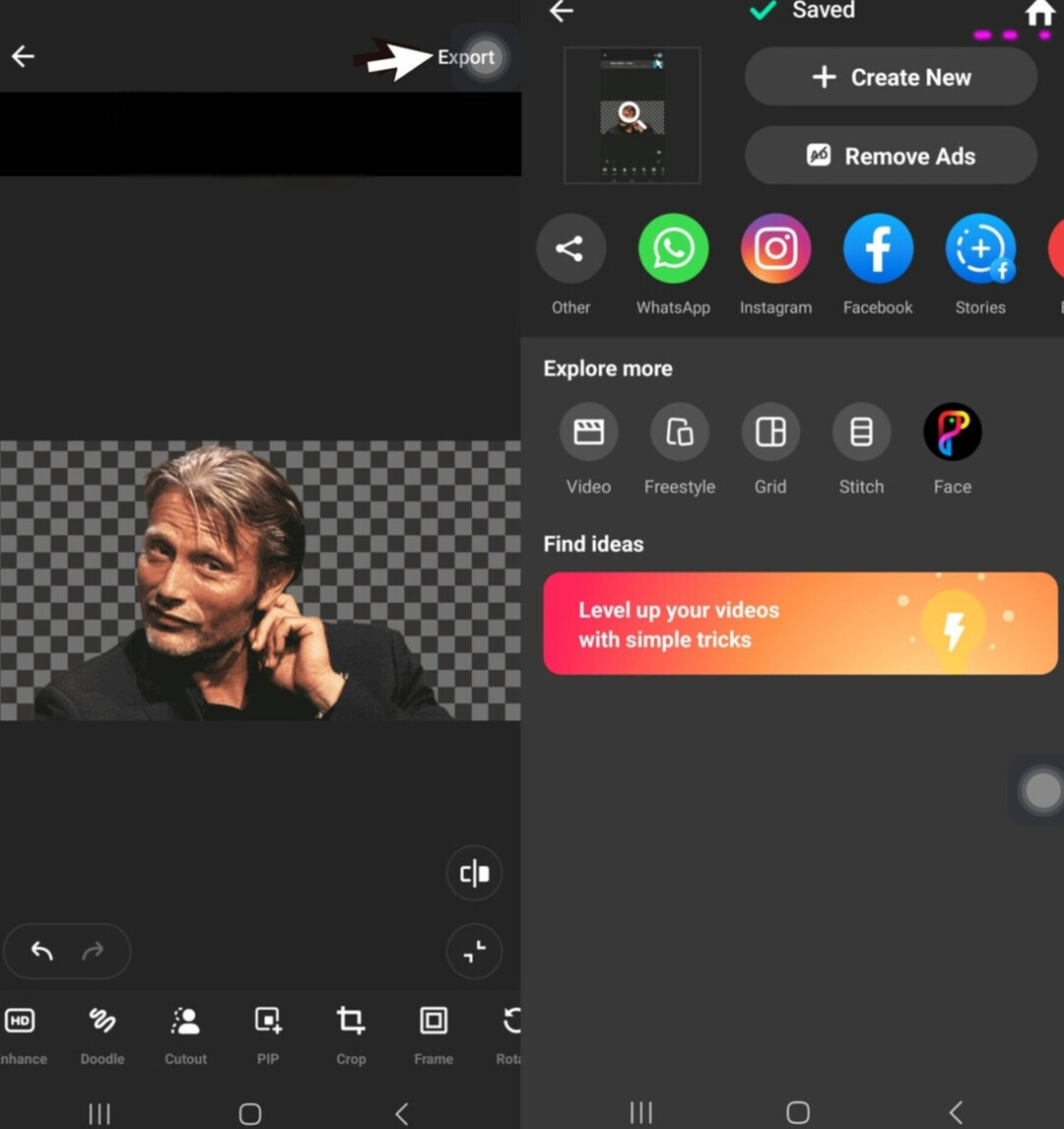
Step 1 : Download the InShot app 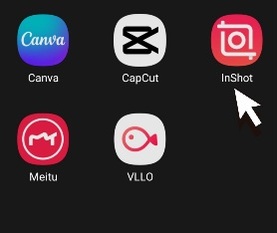 Step 2 : Click Photo then select the photo/object you want to edit then scroll through the menu below and choose Cutout
 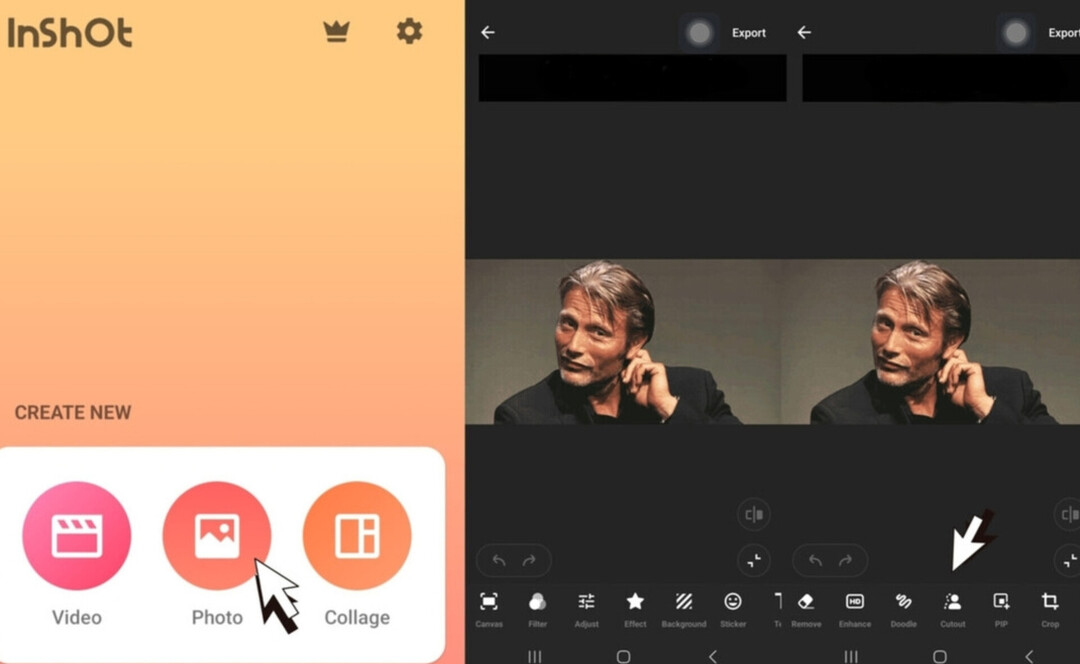 Step 3 : Correct the object whose background will be removed
Use the Erase menu to tidy up the object/remove any unwanted parts and use the Brush menu to restore parts if you accidentally erase them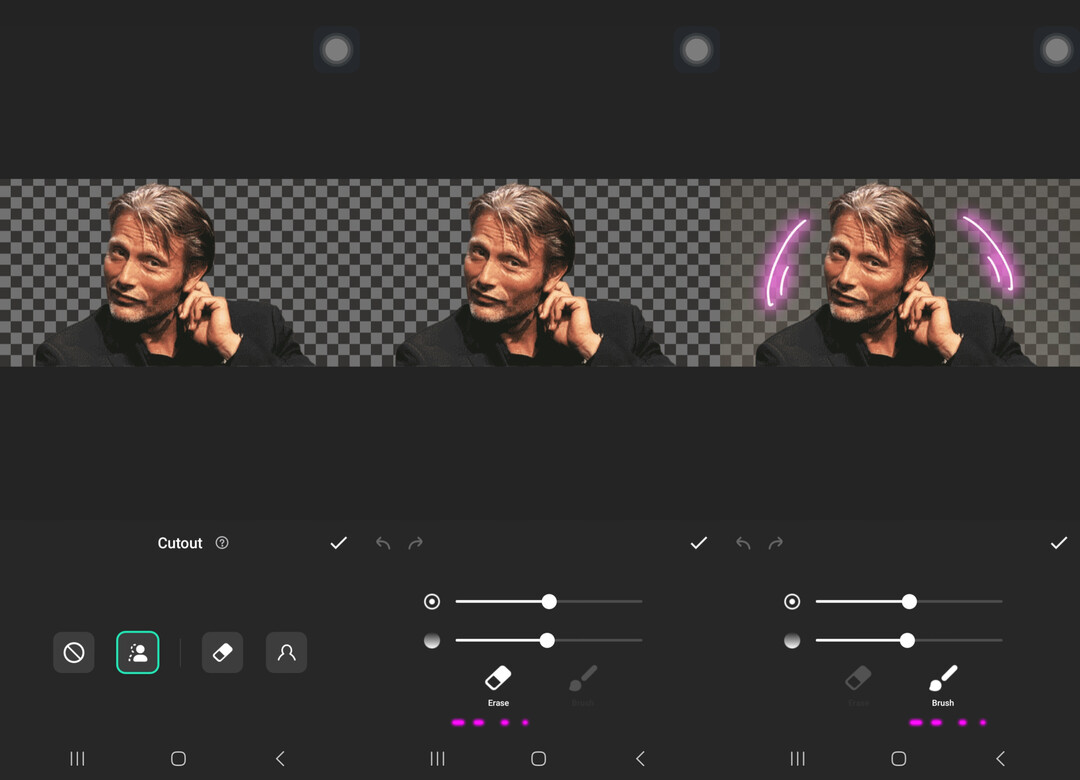 Step 4 : Export
If you feel the object is correct, you can save it by click the Export button - saved - back to home page
Use the Erase menu to tidy up the object/remove any unwanted parts and use the Brush menu to restore parts if you accidentally erase them
Step 4 : Export
If you feel the object is correct, you can save it by click the Export button - saved - back to home page
➕ adding an object
Step 1 : Use the InShot app
Step 2 : Click Collage then choose Grid. The number of objects/photos depends on how many you want to include in the edit. You can adjust the size of the object/photo
in the Canvas menu then click the arrow button once the object size feels right. If you feel the object is correct, you can save it by click the Export button 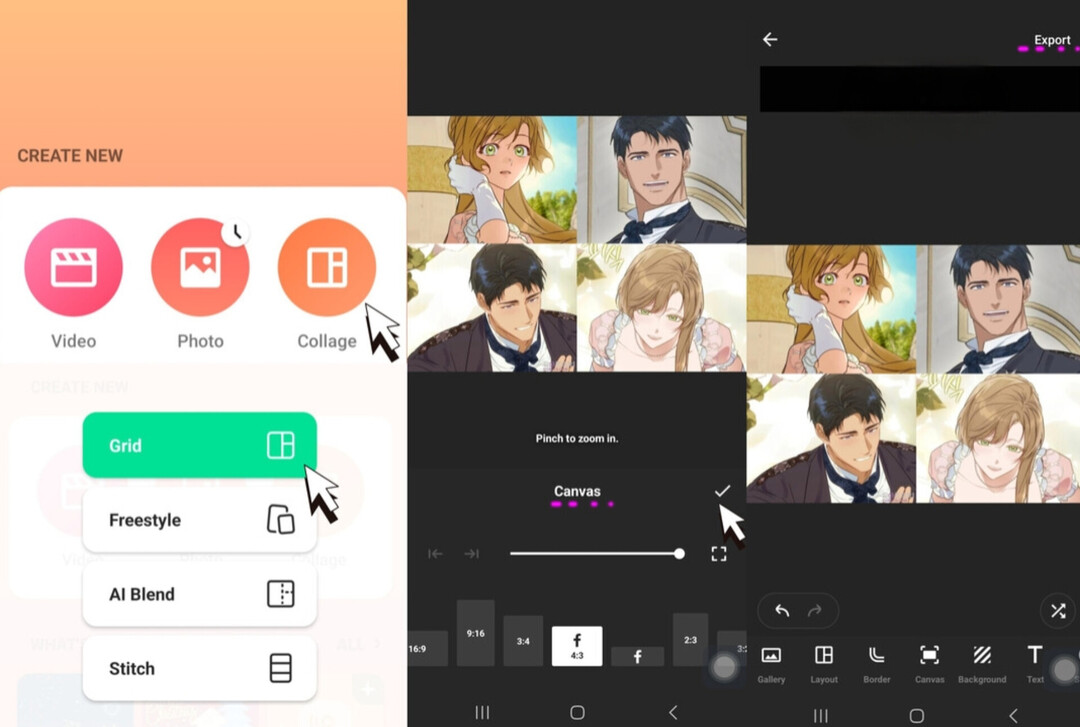 Step 3 : Adding an object with the background removed
The steps for removing an object’s background are explained in the steps above, so make sure you understand them. Click Photo and select the object/photo that was created previously then click PIP button. 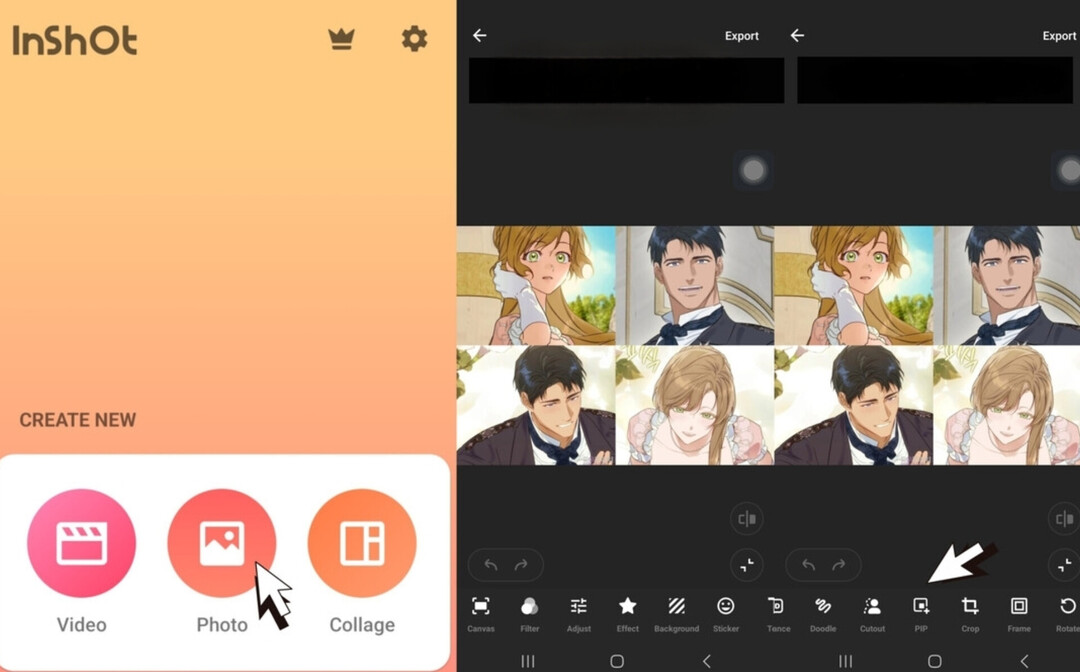 Step 4 : Editing Object
The editing style is entirely up to you. You can customize it according to your imagination. The objects can be adjusted or added as you like. Once everything looks right, you can save it by pressing the Export button.
Here are some examples of how to use it
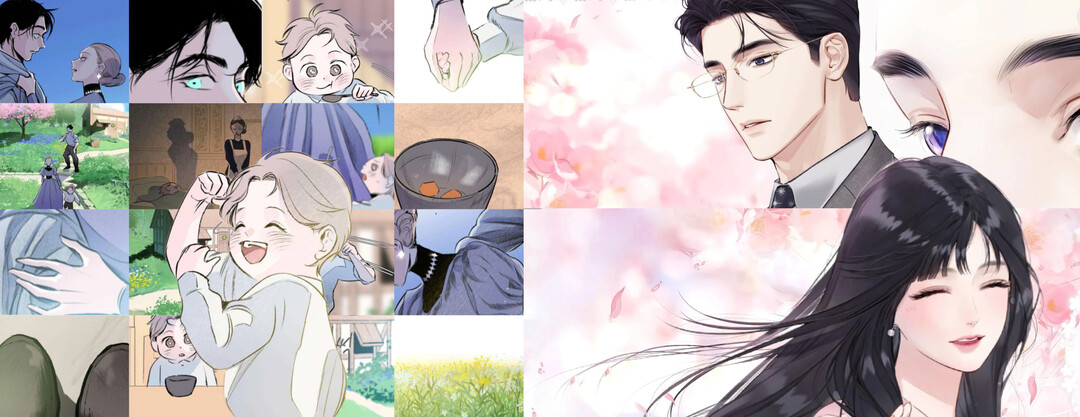
The steps for removing an object’s background are explained in the steps above, so make sure you understand them. Click Photo and select the object/photo that was created previously then click PIP button.
The editing style is entirely up to you. You can customize it according to your imagination. The objects can be adjusted or added as you like. Once everything looks right, you can save it by pressing the Export button.
Here are some examples of how to use it
👥 seamless photo
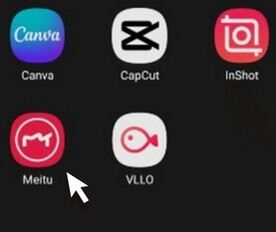
Step 1 : Download the Meitu app
Step 2 : Select the Seamless Collage menu, then click Try Now 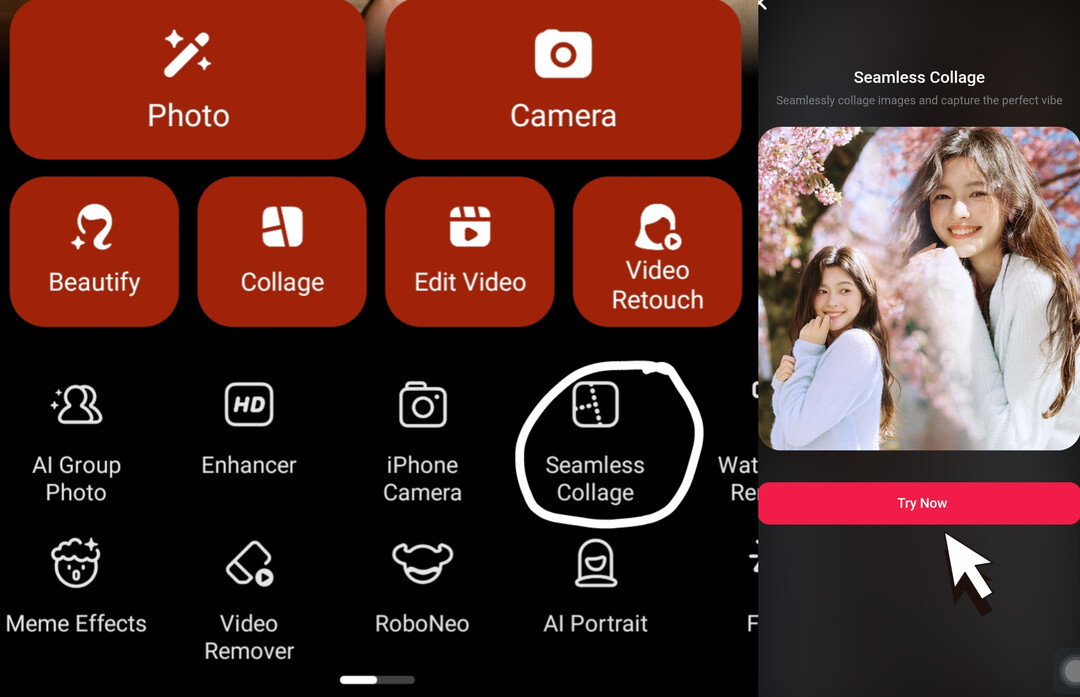
Step 3 : Choose the photo you want to edit. You can select as many as needed, then adjust the object’s Ratio and Intensity. Once everything looks right, you can save it by pressing the Save button.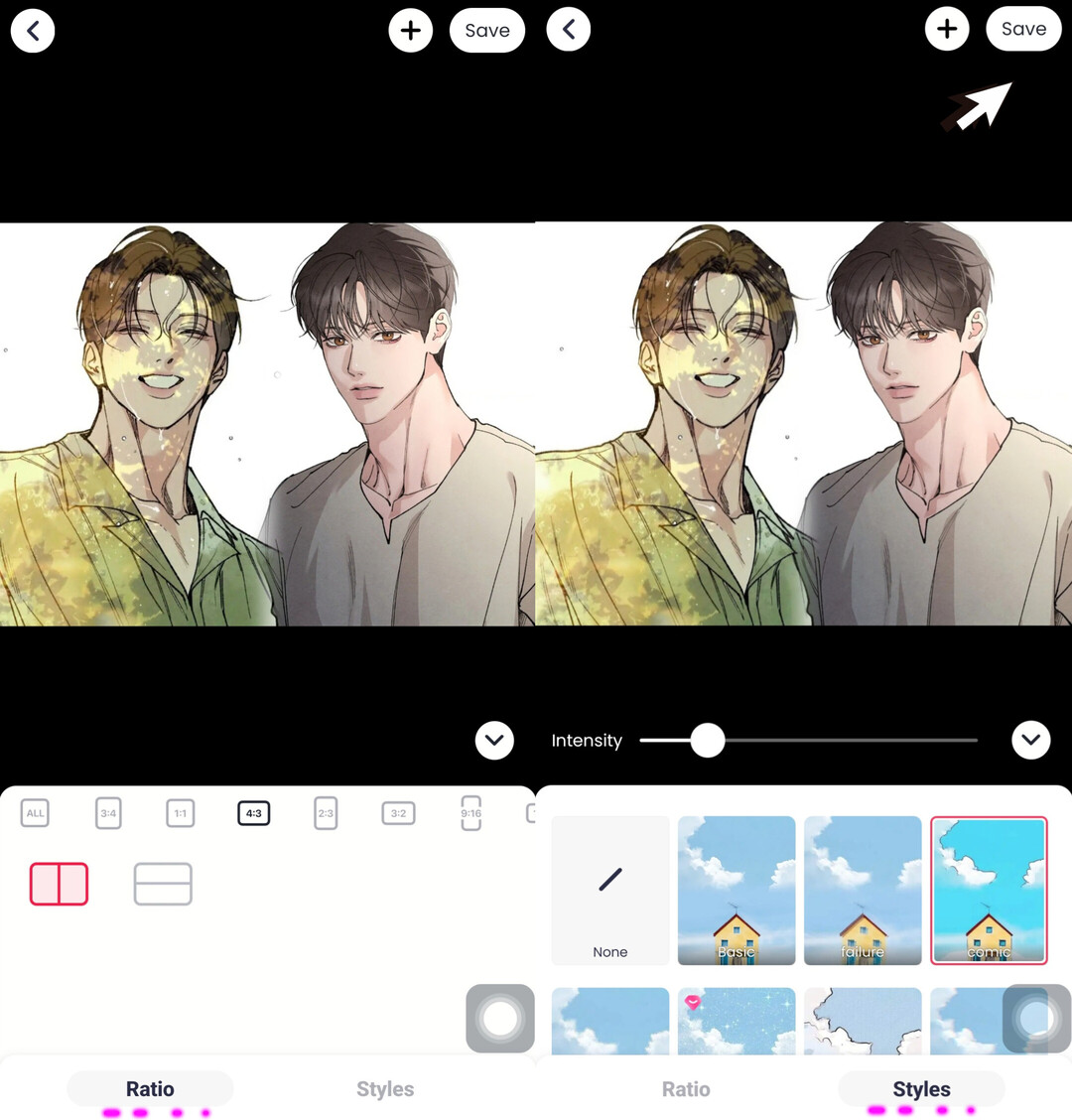
link
for other users, please check the Reddit link
source : reddit | reddit pdf
━━━━⊱⋆⊰━━━━
(Android user)
Fix the panel with JavaScript on Chrome
*Credit : Dr_Neuro_Noir*
*Credit : Dr_Neuro_Noir*
Paste code :
javascript:(function(){ setInterval(() => { document.querySelectorAll('img').forEach(img => { if (img.src.includes('//k') && img.src.includes('.mb')) { img.referrerPolicy = "no-referrer"; img.src = img.src.replace('//k', '//n'); } }); }, 2000); })();
* Step 1 : Open the manhwa/hua/manga or whatever it is you want to read for example like the one shown below (you can see that there’s a panel that hasn’t opened, so let’s fix it).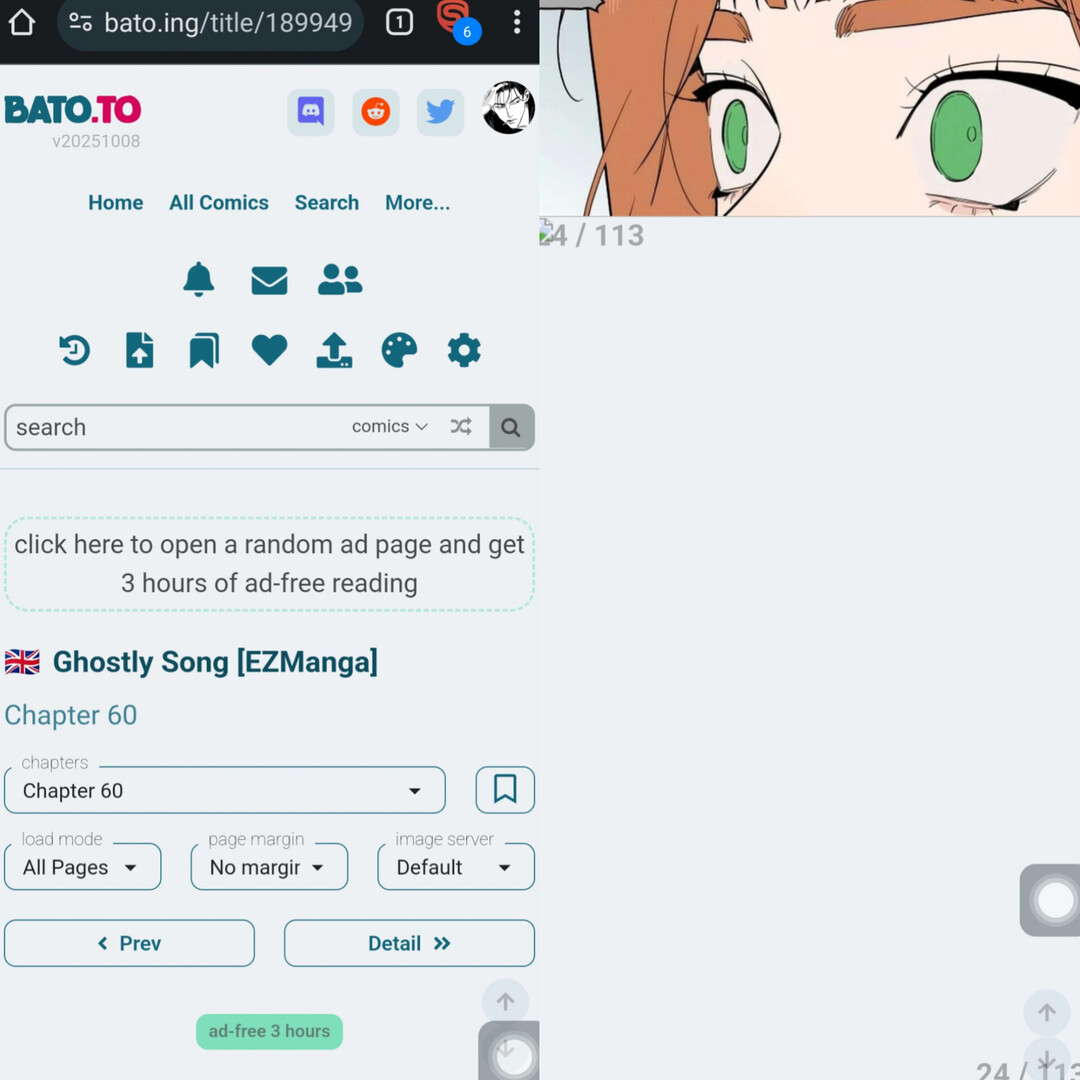 * Step 2 : Creating a Bookmark
Click the three-dots - select/press the star icon and then bookmark it.
* Step 2 : Creating a Bookmark
Click the three-dots - select/press the star icon and then bookmark it.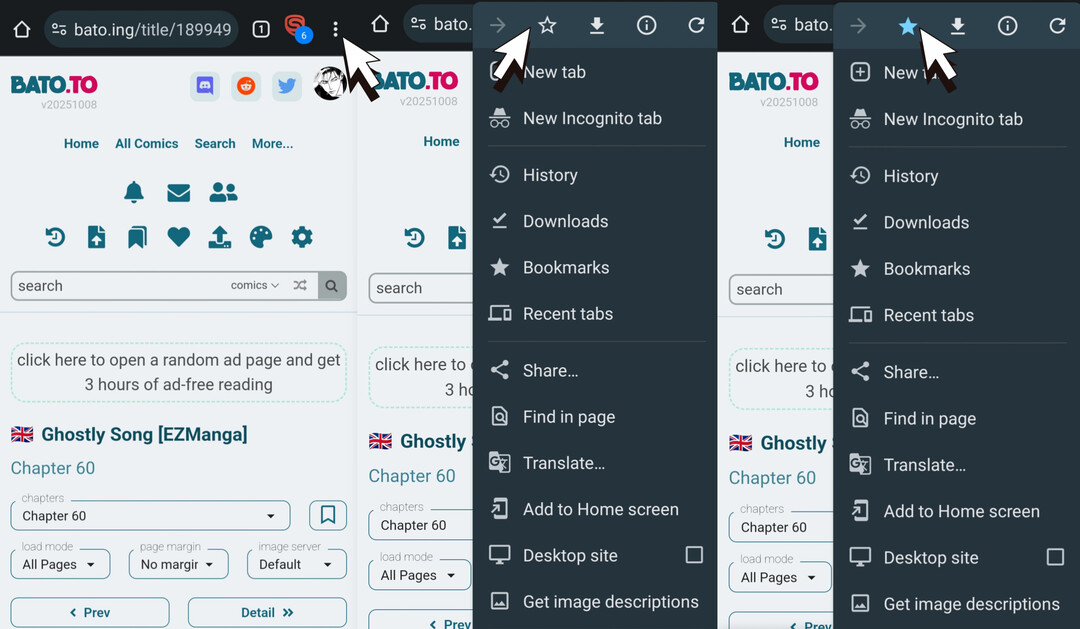 * Step 3 : Edit Bookmark
Open the bookmarks - click mobile bookmarks click the three-dots and then edit.
* Step 3 : Edit Bookmark
Open the bookmarks - click mobile bookmarks click the three-dots and then edit. 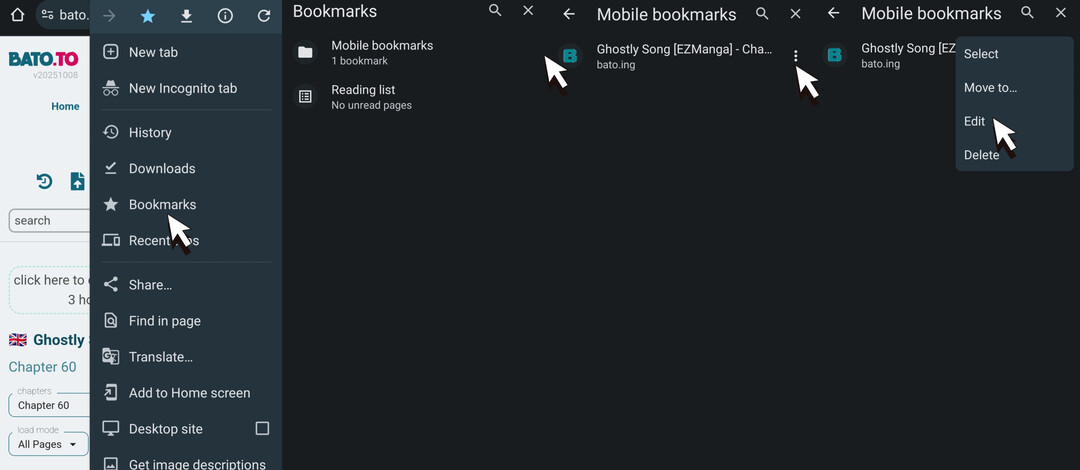 * Step 4 : Replace the bookmark with the JavaScript code above.
Edit Name (You can change the name to whatever you want) - edit URL - then replace the URL with JavaScript.
* Step 4 : Replace the bookmark with the JavaScript code above.
Edit Name (You can change the name to whatever you want) - edit URL - then replace the URL with JavaScript. 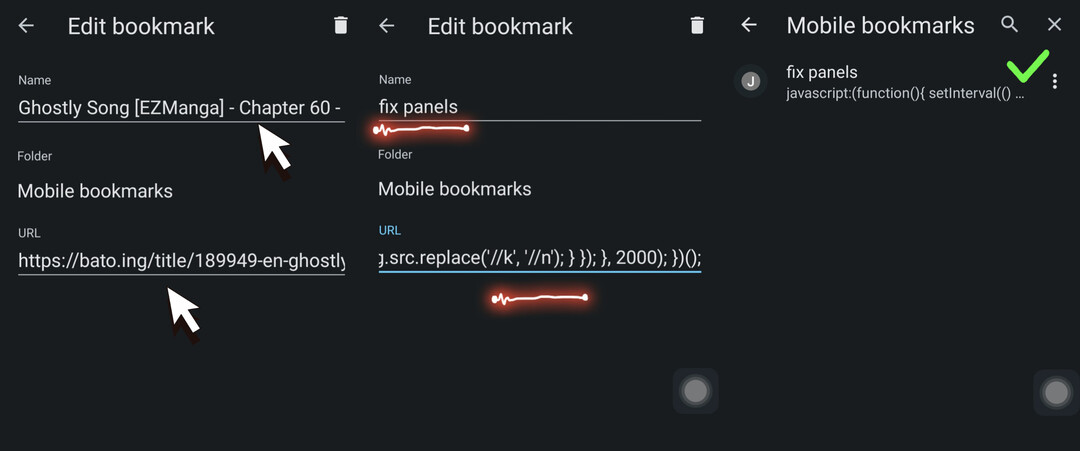 * Step 5 : Leave that bookmark and go back to the main page.
 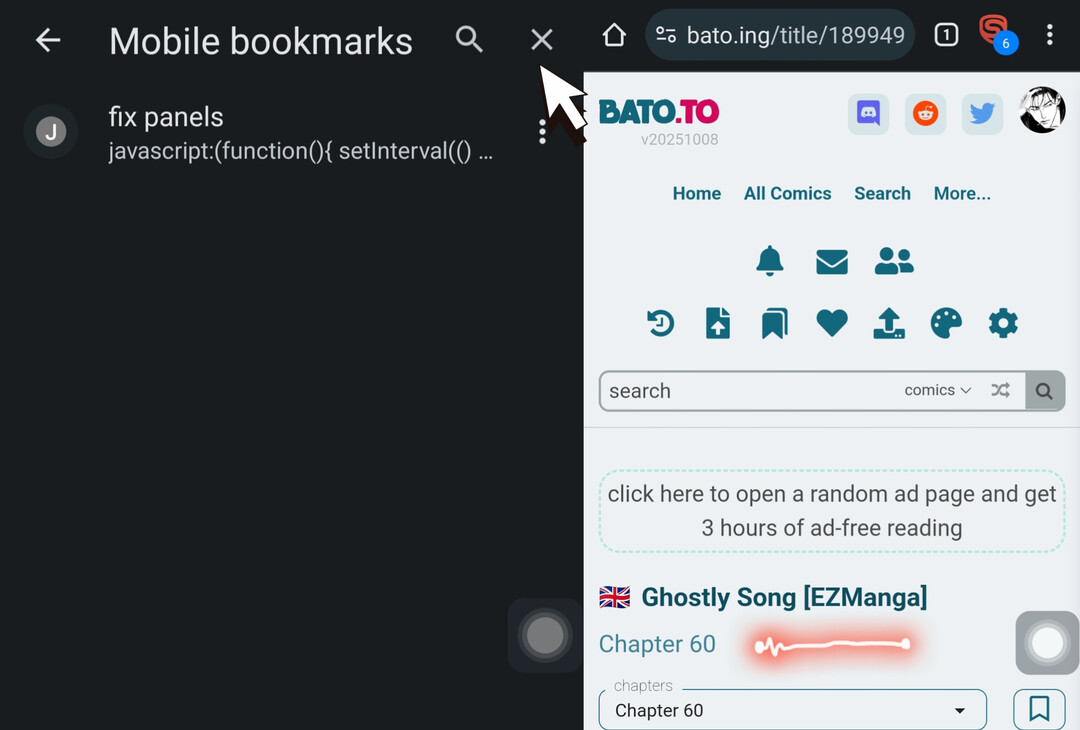 * Step 6 : Click the Search Bar and look for the bookmark
Type the name of the bookmark that was previously created then tap and wait for it to load.
* Step 6 : Click the Search Bar and look for the bookmark
Type the name of the bookmark that was previously created then tap and wait for it to load. 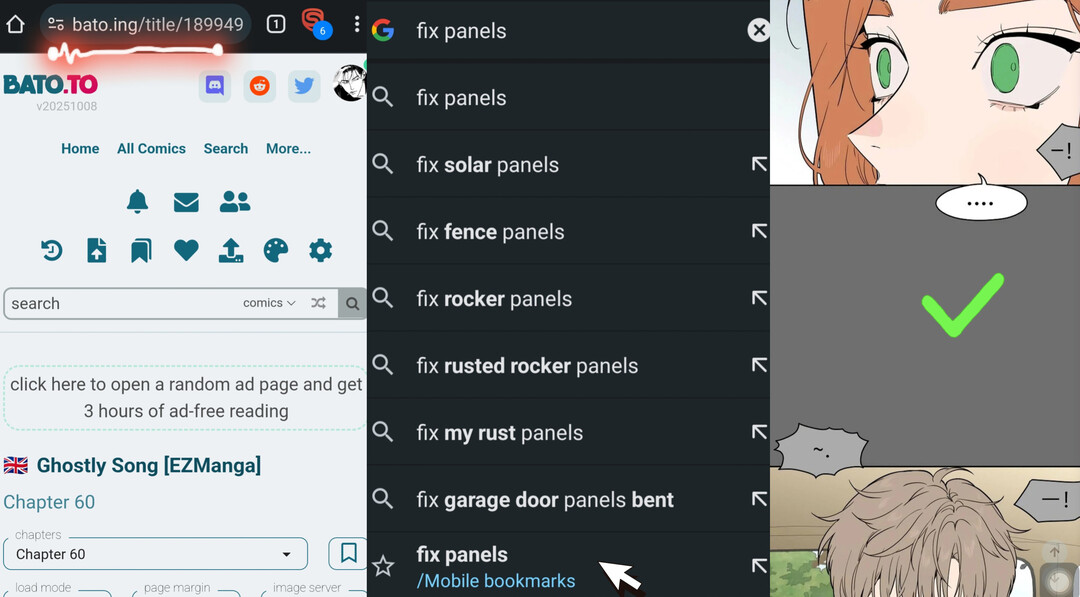
javascript:(function(){ setInterval(() => { document.querySelectorAll('img').forEach(img => { if (img.src.includes('//k') && img.src.includes('.mb')) { img.referrerPolicy = "no-referrer"; img.src = img.src.replace('//k', '//n'); } }); }, 2000); })();
* Step 1 : Open the manhwa/hua/manga or whatever it is you want to read for example like the one shown below (you can see that there’s a panel that hasn’t opened, so let’s fix it).
* Step 2 : Creating a Bookmark
Click the three-dots - select/press the star icon and then bookmark it.
* Step 3 : Edit Bookmark
Open the bookmarks - click mobile bookmarks click the three-dots and then edit.
* Step 4 : Replace the bookmark with the JavaScript code above.
Edit Name (You can change the name to whatever you want) - edit URL - then replace the URL with JavaScript.
* Step 5 : Leave that bookmark and go back to the main page.
* Step 6 : Click the Search Bar and look for the bookmark
Type the name of the bookmark that was previously created then tap and wait for it to load.
Note : Use this feature when a panel is not loading; simply tap the bookmark you created.
This is the panel that loads properly
if you curious about something you want to ask
(feel free to message me) 💌
Block User
When adding a user to your block list, if there is a friend relationship between you, it will be terminated in both directions.
Users on your blocked list:
- Unable to reply to your comments.
- Unable to send you message.
- Unable to send you friend request.
Friend Manage
Instructions:
- Need the consent of the other party to become your friend.
- Unresponsive requests automatically expire after 30 days.
- You can submit up to 100 friend requests within 30 days